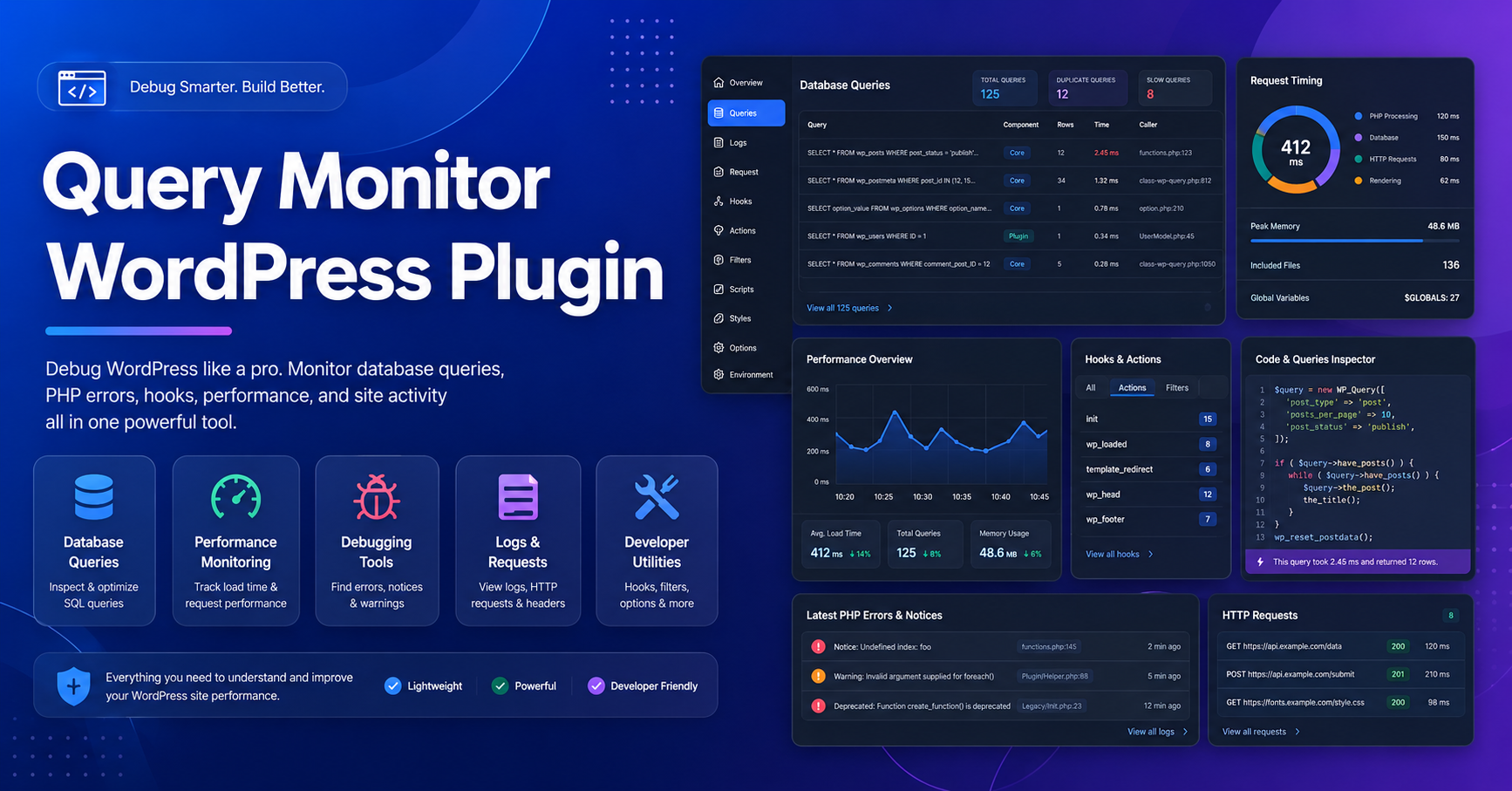
If you manage a WordPress website and want to understand why a page is slow, which plugin is creating database load, or where PHP errors are coming from, the query monitor wordpress plugin is one of the most useful free developer tools available. Query Monitor is listed on WordPress.org as a developer tools panel for WordPress and WooCommerce, with debugging support for database queries, PHP errors, hooks, actions, scripts, styles, HTTP API requests, REST API calls, Ajax calls, and more.
Unlike a basic WordPress debugging plugin, Query Monitor gives detailed technical visibility inside the WordPress admin toolbar. It helps developers, site owners, WooCommerce store managers, and performance optimization experts identify slow queries, duplicate queries, PHP warnings, broken dependencies, template issues, and plugin-related bottlenecks.
Is Query Monitor WordPress Plugin Free?
Yes. Query Monitor has an official free download available from the WordPress.org plugin directory. As of the latest available WordPress.org plugin data, Query Monitor version 4.0.7 is listed with 200,000+ active installations, support for WordPress 6.2 or higher, tested up to WordPress 7.0, and PHP 7.4 or higher.
That means users can install it directly from the WordPress dashboard without paying for a premium license.
Important security note: Do not download Query Monitor from nulled plugin websites, random ZIP-sharing sites, or “premium plugin free download” portals. Query Monitor is already free officially, so there is no reason to risk malware, backdoors, SEO spam injections, or database compromise.
Why Use Query Monitor for WordPress Debugging?
The biggest benefit of Query Monitor is clarity. Instead of guessing why a WordPress website is slow or broken, you can inspect the real technical signals behind the problem.
Query Monitor can help you check:
- Slow database queries
- Duplicate database queries
- PHP errors and warnings
- Theme template hierarchy
- Hooks and actions
- HTTP API requests
- REST API requests
- Ajax debugging
- Enqueued scripts and styles
- Block editor and full site editing details
- User capability checks
- WooCommerce performance issues
The plugin also groups database queries by plugin, theme, or function, making it easier to identify the exact component responsible for performance problems.
Key Features of Query Monitor Plugin
1. Database Query Analysis
Query Monitor shows database queries running on each page. This is useful when a website has high server response time, slow admin pages, or WooCommerce checkout delays. It can highlight slow, duplicate, and erroneous queries, and it allows filtering by query type, responsible component, and calling function.
2. PHP Error Monitoring
Instead of hiding PHP warnings in logs, Query Monitor displays PHP errors clearly in the admin toolbar. This helps developers fix deprecated functions, compatibility issues, plugin conflicts, and theme coding mistakes faster.
3. Scripts and Styles Debugging
If your site has broken JavaScript, missing CSS files, or dependency conflicts, Query Monitor can help you inspect enqueued scripts and styles. This is especially helpful after installing new plugins or updating a theme.
4. Hooks and Actions Visibility
WordPress runs on hooks and filters. Query Monitor helps developers see which hooks fire on a page and which callbacks are attached. For custom WordPress development, this can save hours of manual debugging.
5. REST API and Ajax Debugging
Modern WordPress websites often depend on REST API and Ajax calls. Query Monitor includes advanced debugging for Ajax and REST API requests, making it useful for WooCommerce, membership sites, LMS platforms, and custom dashboards.
Query Monitor vs Basic Debugging
Basic WordPress debugging usually requires enabling WP_DEBUG in the wp-config.php file. That is useful, but it does not give the same visual, organized, page-level information. Query Monitor works more like a complete WordPress developer tools panel, showing performance data, errors, queries, hooks, templates, and request information in one place.
For developers, this means faster troubleshooting. For site owners, it means better conversations with hosting support, plugin developers, or website maintenance teams.
Security Disclaimer: Avoid Nulled Plugin Downloads
Never download a “nulled” version of any WordPress plugin, even if the plugin is free or promoted as safe. Nulled plugins can include hidden malware, spam links, SEO cloaking scripts, admin user backdoors, and malicious redirects.
For Query Monitor, always use the official WordPress.org version. Official downloads protect your site security, SEO performance, customer data, and long-term WordPress stability.
Conclusion
The query monitor wordpress plugin is one of the best free WordPress debugging tools for developers and serious site owners. It helps uncover slow database queries, PHP errors, script conflicts, REST API issues, Ajax problems, and performance bottlenecks with clear technical panels.
If your website feels slow, unstable, or difficult to troubleshoot, Query Monitor is a smart plugin to install from the official WordPress.org directory. Use it carefully, diagnose the issue, fix the root cause, and avoid unsafe nulled downloads completely.
FAQs
Is Query Monitor free?
Yes. Query Monitor is available as a free plugin from the official WordPress.org plugin directory.
Is Query Monitor safe to use?
Yes, when downloaded from WordPress.org. Avoid third-party nulled or modified plugin ZIP files.
Can Query Monitor improve website speed?
It does not directly speed up your website, but it helps you find the slow queries, plugins, scripts, or errors causing performance problems.
Is Query Monitor good for WooCommerce?
Yes. Query Monitor supports WordPress and WooCommerce debugging, making it useful for product pages, checkout issues, and slow store performance.
Should I keep Query Monitor active all the time?
For development sites, yes. For live high-traffic sites, use it when troubleshooting and deactivate it after finishing your checks.