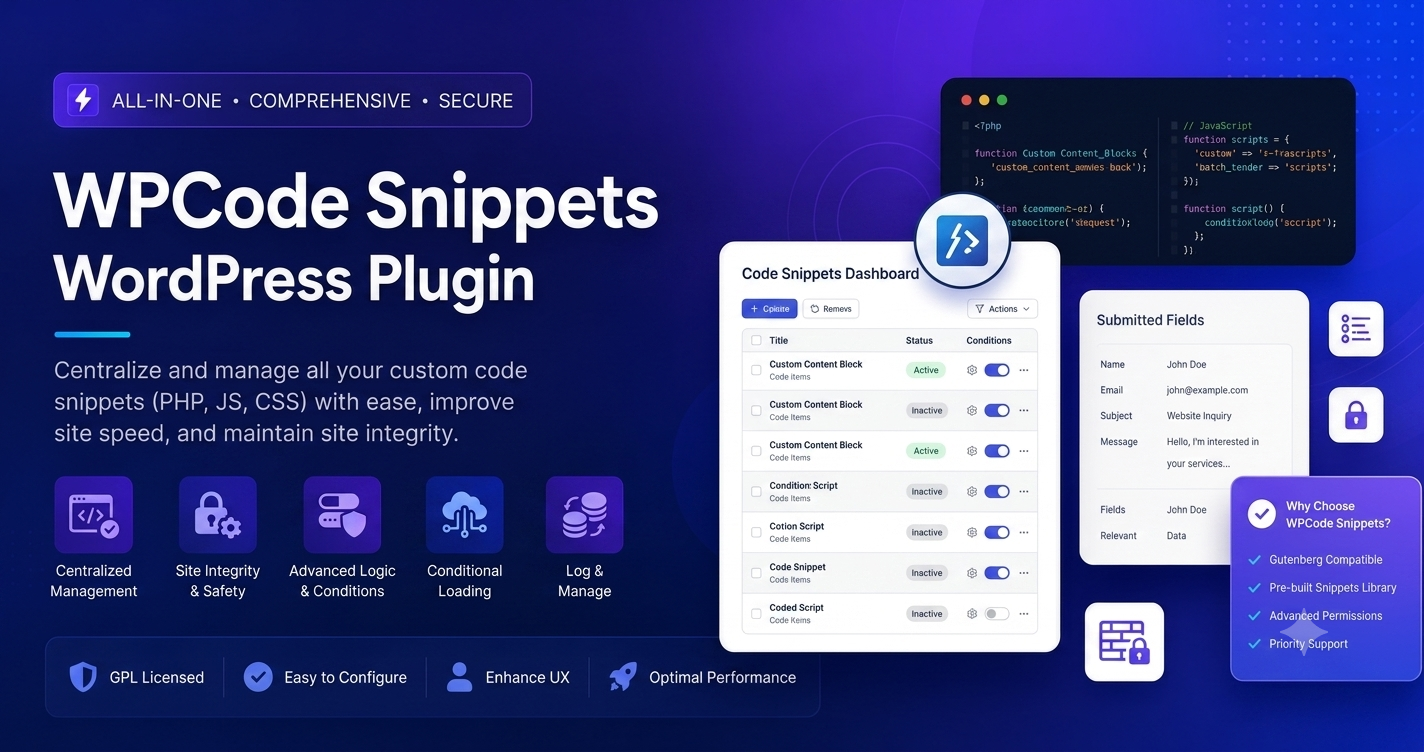
In the ever-evolving world of WordPress, the secret to a high-performing, lightning-fast website often comes down to one thing: minimizing plugin bloat. Every plugin you install adds a layer of weight to your database and increases the number of HTTP requests your site must process. For years, developers were forced to edit the functions.php file of their theme to add custom functionality, a risky practice that could crash a site with a single syntax error.
Enter WPCode. With over 3 million active installations, WPCode (formerly known as Insert Headers and Footers) has revolutionized how WordPress site owners manage customizations. It allows you to inject custom PHP, JavaScript, CSS, and HTML snippets safely, effectively replacing dozens of plugins with one lightweight, high-performance manager.
Why Every WordPress Site Needs a Snippet Manager
Many users believe that they need a separate plugin for every tiny feature: one for Google Analytics, one for custom CSS, one to disable comments, and another to add a custom post type. This is “plugin creep.”
WPCode solves this by acting as a “plugin to rule them all.” By moving your site’s custom logic into a dedicated snippet manager, you achieve several critical benefits:
1. Future-Proofing Your Customizations
When you add code directly to your theme’s functions.php file, your changes are lost the moment you update or switch your theme. WPCode stores your snippets independently in the database. No matter what theme you use, your customizations stay exactly where they belong, keeping your site’s personality and functionality intact through every update.
2. Enhanced Safety with “Safe Mode”
The greatest fear when adding custom code is the “White Screen of Death”—a fatal error that locks you out of your admin dashboard. WPCode includes an industry-leading Safe Mode and built-in error handling. If a snippet contains a syntax error or a logical flaw, WPCode will automatically detect it, deactivate the offending snippet, and keep the rest of your site running smoothly. It’s a safety net that every professional site owner needs.
3. Improved Performance (Core Web Vitals)
WPCode is optimized for speed. It boasts a remarkably low memory footprint, ensuring that your custom functions execute without dragging down your TTFB (Time to First Byte). Furthermore, it helps you adhere to Google’s Core Web Vitals by allowing you to conditionally load scripts, ensuring that your site only loads what it absolutely needs for each specific page.
Key Features of WPCode
Smart Conditional Logic
This is the feature that separates a basic snippet plugin from a professional tool. With conditional logic, you can control exactly where and when a snippet runs.
- Target specific pages: Load a Facebook Pixel only on your WooCommerce “Thank You” page.
- User-based execution: Run a snippet only for logged-in users or specific user roles.
- Geolocation rules: Tailor content or scripts for visitors from specific countries.
Auto-Insert Locations
Don’t want to hunt for the right file to edit? WPCode’s Auto-Insert feature lets you choose where your code goes with a simple dropdown menu. Whether it’s in the <head>, <footer>, before post content, or after the footer, WPCode handles the insertion, ensuring your scripts are placed correctly every time.
Extensive Code Library
Not a coder? That’s perfectly fine. WPCode includes a built-in library of over 100+ expert-verified snippets for common tasks:
- Disable WordPress comments.
- Add custom file types for uploads.
- Enable SVG support.
- Add custom CSS for specific theme adjustments.
- Extend WordPress search functionality.
Step-by-Step Installation & Usage Guide
Step 1: Install the Plugin
- Log in to your WordPress dashboard.
- Go to Plugins > Add New and search for WPCode.
- Install and activate “WPCode – Insert Headers and Footers + Custom Code Snippets.”
Step 2: Adding Your First Snippet
- Navigate to Code Snippets > + Add Snippet.
- You can either select a “Ready-made” snippet from the library or choose “Add Your Custom Code (New Snippet).”
- Select the Code Type (PHP, CSS, JS, or HTML).
- Paste your code into the editor. WPCode will provide syntax highlighting to make reading the code easier.
Step 3: Configure Settings
- Set the Insertion to “Auto Insert” if you want it to run automatically, or choose “Shortcode” if you want to place it manually.
- Use the “Smart Conditional Logic” section to restrict where the code runs.
- Toggle the switch to “Active” and click “Save Snippet.”
Troubleshooting Common Issues
While WPCode is incredibly stable, users occasionally run into minor configuration issues. Here is how to handle them:
- Code Not Appearing? Ensure that the “Insertion” location is correct and that the “Active” toggle is set to the ‘On’ position. Check your Conditional Logic rules—if the rule doesn’t match the current page, the snippet will not trigger.
- Syntax Errors? WPCode’s validator will typically catch these before you save. If you do encounter a PHP error, remember that the plugin will deactivate the snippet. You can check the “Revisions” tab to see what changed or restore a previous working version.
- Performance Conflict? If you are adding multiple marketing pixels (Facebook, Google, TikTok), make sure you are using separate snippets for each pixel to maintain clear organization and easy debugging.
Final Thoughts
In the world of WordPress development, WPCode is the ultimate “Swiss Army Knife.” It empowers non-developers to achieve high-level site customizations while giving experienced developers a clean, safe, and organized way to manage their workflows. By moving your customizations into a centralized, protected, and performance-optimized system, you are taking a massive step toward a faster, more reliable, and future-proof WordPress website.
Frequently Asked Questions (FAQs)
Q: Is the free version enough for most websites?
A: Yes. For 90% of WordPress sites, the free version of WPCode is more than sufficient. It includes header/footer script injection, standard PHP/CSS/JS snippet support, and the safe error handling that makes this plugin so popular.
Q: Does WPCode replace my SEO or performance plugins?
A: Not entirely. WPCode is a customization and script management tool. While it helps you manage your SEO tracking pixels and custom configurations (which improves performance), you should still use specialized plugins like Rank Math or WP Rocket for their primary functions.
Q: Can I use WPCode to modify WooCommerce?
A: Absolutely. WPCode is highly compatible with WooCommerce. You can add snippets to dynamically change checkout fields, modify prices, or inject custom labels on product pages using WooCommerce hooks.
Q: Is it safe to use on client sites?
A: Yes, it is a preferred tool for agencies. Because you can export/import snippets or use the Cloud Library (Pro feature), you can easily maintain a consistent "toolkit" of custom functionality across all your client websites.
Q: Will adding snippets slow down my site?
A: Quite the opposite. By replacing a dozen heavy plugins with a few light snippets, you will almost certainly see an improvement in your page load times and a reduction in database bloat.